 007 First Light
Files
Main File - Version v1.0 Latest
Jun 12, 2026 2 KB
Changelog:
Initial release
Description
Ultra Realistica ReShade
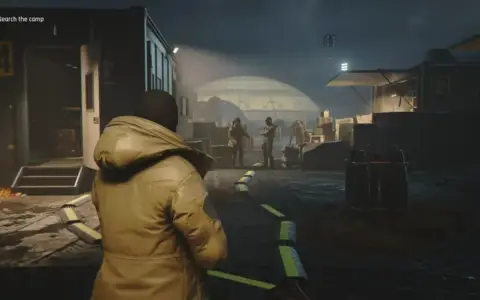
This is a realistic ReShade preset that improves lighting, contrast, color, sharpness, and shadows without any performance loss.
Installation
Download the ReShade Preset from the files section at the top of this page.
Download the latest ReShade Version: https://reshade.me
Start ReShade setup.exe and choose
007FirstLight.exein the menu, then click Next.Select DirectX10/11/12 in ReShade setup and click Next.
Select the following effects in the ReShade setup (you must place checkmark symbols by clicking twice, not black filled squares):
Standard effects
SweetFX by CeeJay
Legacy effects
AstrayFX by BlueSkyDefender
Click Next, then click Finish.
Go to your game’s main directory where
007FirstLight.exeis located.Unzip your downloaded ReShade Preset and drag and drop all files into the main directory (overwrite files if needed).
Start the game. It may take a few seconds longer at the first start.
Done. ReShade should now be active.
To check if ReShade loaded:
Open the ReShade menu with the HOME-Key on your keyboard. Open the “Start” tab at the top in the ReShade menu if it isn’t already open.
In-Game Hotkeys for ReShade
(Optional) Less Bloom and Saturation Version
This version can help if your HUD and subtitles are too bright, or if the image is too vibrant for you.
Install:
Install the “Normal Version” with the instructions above (if you haven’t already).
After installation, download the Ultra Realistica Less Bloom and Less Saturation from my files.
Unzip the folder and drag and drop the file into the main directory again.
Start the game and press the HOME-Key to open the ReShade menu.
At the top of the menu (in the “Start” tab), you should see a bar with the description: Ultra Realistica ReShade.ini. Click on it.
Scroll down in the drop-down menu, search for “Ultra Realistica ReShade Less Bloom and Less Saturation.ini” and select it.
Done.
Now you can easily switch between the normal version and the version with less bloom in the ReShade menu at any time by repeating step 6. Simply select either the “Ultra Realistica ReShade.ini” or “Ultra Realistica ReShade Less Bloom and Less Saturation” file. Or use the hotkey: Page Up / PgUp-Key.
Customization Guide
My preset serves as a starting point that you’re welcome to customize to your liking. Here are a few ideas:
Contrast Adjustments
Curves.fx — Use the Contrast slider to increase or decrease overall contrast
Levels.fx — Use the Black Point slider to reduce or increase contrast for dark areas
Levels.fx — Use the White Point slider to make bright areas less or more bright
(I recommend testing the “Curves.fx” slider first)
Saturation Adjustments
Vibrance.fx — Use the Vibrance slider to increase or decrease saturation in a more natural way
DPX.fx — Use the Colorfulness slider to increase or decrease saturation
DPX.fx — Use the Saturation slider to increase or decrease saturation more significantly
(I recommend testing the “Vibrance.fx” slider first)
Uninstall
To uninstall ReShade, simply delete all the added ReShade files manually in the main game folder (especially dxgi.dll or if you renamed it, d3d12.dll).
Rate This Mod
—
0 ratings
★★★★★
Login to rate this mod.

PixelPhantom
Trusted Modder
21 mods · 304 total downloads
Related Mods
007 First Light  007 First Light
  007 First Light
  007 First Light